WiFi networking & Interfearance
WiFi is a open protocol technology that allows devices to
connect to the internet and communicate with each other wirelessly using radio
waves. It is based on the IEEE 802.11 family of standards and is commonly used
in homes, offices, and public spaces to provide internet access and local
network connectivity.
Key Components of WiFi Networking:
- Access
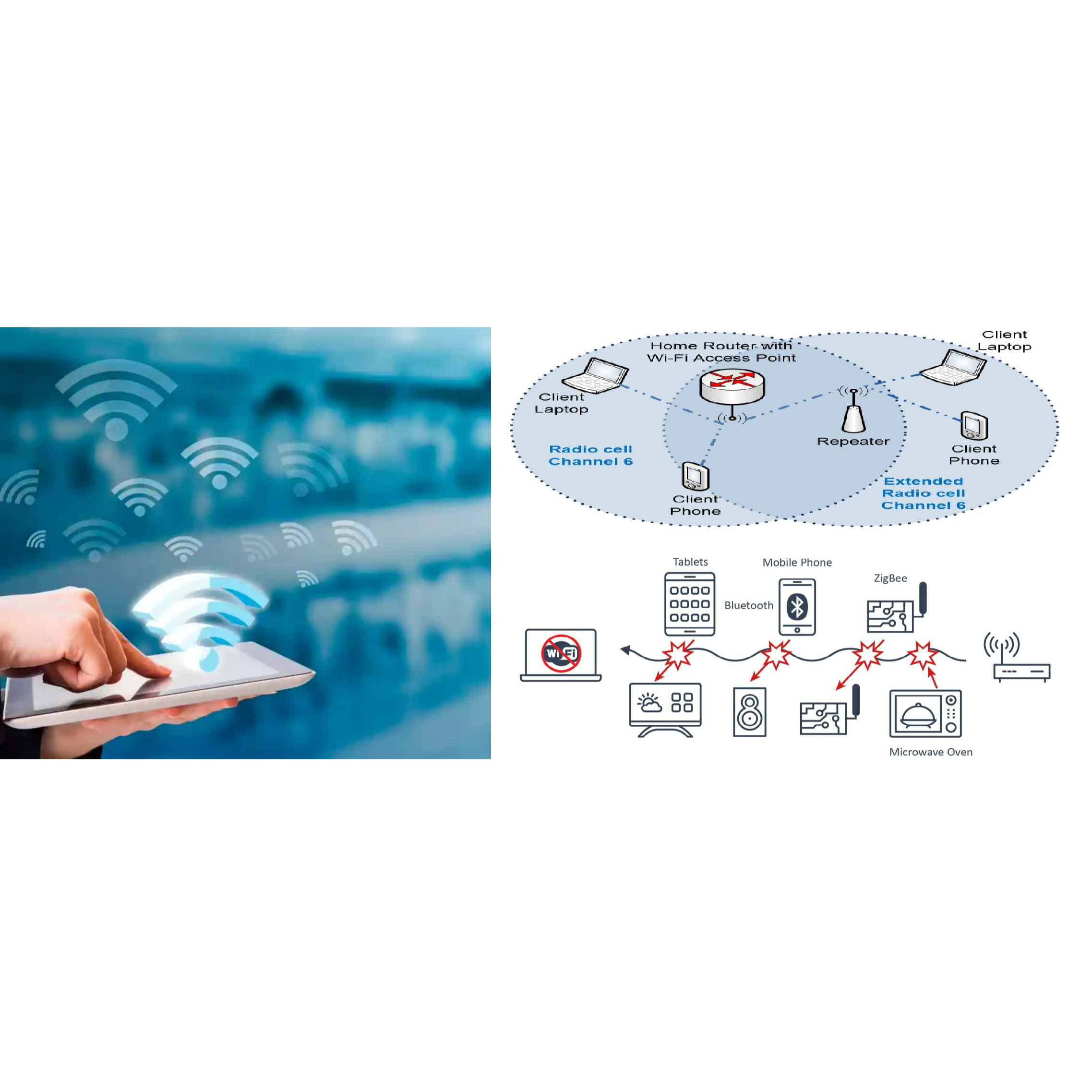
Point (AP): A device that broadcasts the WiFi signal and allows
wireless devices to connect to the network. It is often integrated into
routers.
- Router:
Connects the local network to the internet and manages data traffic
between devices.
- Client
Devices: Devices like smartphones, laptops, tablets, and IoT devices
that connect to the WiFi network.
- Frequency
Bands: WiFi operates on two main frequency bands:
- 2.4
GHz: Offers wider coverage but is more prone to interference.
- 5
GHz: Provides faster speeds and less interference but has a shorter
range.
- Channels:
WiFi networks operate on specific channels within the frequency bands.
Proper channel selection can reduce interference.
WiFi Interference:
Interference occurs when other signals or devices disrupt
the WiFi signal, leading to slower speeds, dropped connections, or poor
performance. Common sources of interference include:
- Other
WiFi Networks: Nearby WiFi networks operating on the same or
overlapping channels can cause congestion.
- Household
Devices: Devices like microwaves, cordless phones, and baby monitors
(often operating on the 2.4 GHz band) can interfere with WiFi signals.
- Bluetooth
Devices: Bluetooth also operates on the 2.4 GHz band and can cause
interference.
- Physical
Obstacles: Walls, floors, and furniture can weaken or block WiFi
signals.
- Electronic
Devices: Devices like TVs, monitors, and power lines can emit
electromagnetic interference.
- Outdoor
Interference: Weather conditions, neighboring buildings, and other
environmental factors can affect WiFi performance.
How to Reduce WiFi Interference:
- Change
the WiFi Channel: Use a less congested channel, especially on the 2.4
GHz band. Tools like WiFi analyzers can help identify the best channel.
- Switch
to 5 GHz: If your devices support it, use the 5 GHz band for less
interference and faster speeds.
- Position
the Router: Place the router in a central location, away from
obstructions and interference sources.
- Update
Firmware: Ensure your router and devices have the latest firmware
updates for optimal performance.
- Use
Dual-Band or Tri-Band Routers: These routers can operate on multiple
bands simultaneously, reducing congestion.
- Minimize
Physical Obstacles: Reduce the number of walls and large objects
between the router and connected devices.
- Limit
Interfering Devices: Turn off or move devices that cause interference,
such as microwaves or cordless phones.
- Use
WiFi Extenders or Mesh Networks: These can improve coverage in large
areas and reduce dead zones.
Advanced Solutions:
1.
Choosing right hardware
- Beamforming:
A technology used in modern routers to direct WiFi signals toward
connected devices, improving performance.
- Quality
of Service (QoS): Prioritizes bandwidth for specific devices or
applications (e.g., video streaming or gaming).
- Dual-Band
or Tri-Band Router: Opt for a router that supports both 2.4 GHz and 5
GHz bands (dual-band) or even three bands (tri-band) for better
performance and less congestion.
- WiFi
6 (802.11ax) or WiFi 6E: If your devices support it, choose a router
with the latest WiFi standards for faster speeds, better range, and
improved handling of multiple devices.
- MU-MIMO
and Beamforming: Look for routers with these features to improve
performance in multi-device environments.
2. Optimal Router Placement
- Central
Location: Place the router in a central area of your home or office to
ensure even coverage.
- Elevate
the Router: Keep the router off the floor and on a shelf or table to
improve signal distribution.
- Avoid
Obstacles: Keep the router away from thick walls, metal objects, and
large appliances like microwaves or refrigerators.
- Line
of Sight: Position the router so there’s a clear line of sight to
frequently used devices.
3. Use the Right Frequency Band
- 2.4
GHz: Use this band for devices that are farther away from the router
or for devices that don’t require high speeds (e.g., smart home devices).
- 5
GHz: Use this band for devices that need faster speeds and are closer
to the router (e.g., streaming devices, gaming consoles).
4. Select the Best WiFi Channel
- Use
a WiFi analyzer app (e.g., NetSpot, WiFi Analyzer) to check for congested
channels and switch to a less crowded one.
- On
the 2.4 GHz band, use channels 1, 6, or 11, as they don’t overlap with
each other.
- On the
5 GHz band, choose from the many non-overlapping channels available.
5. Secure Your Network
- Strong
Password: Use a strong, unique password for your WiFi network to
prevent unauthorized access.
- WPA3
Encryption: Enable WPA3 (or at least WPA2) encryption on your router
for better security.
- Disable
WPS: Wi-Fi Protected Setup (WPS) can be a security vulnerability, so
turn it off.
6. Optimize Router Settings
- Firmware
Updates: Regularly update your router’s firmware to ensure it has the
latest features and security patches.
- Quality
of Service (QoS): Enable QoS to prioritize bandwidth for critical
activities like video calls, gaming, or streaming.
- Guest
Network: Set up a separate guest network for visitors to keep your
main network secure.
7. Extend Coverage
- WiFi
Extenders: Use WiFi extenders to boost the signal in areas with weak
coverage.
- Mesh
WiFi System: For larger spaces, consider a mesh WiFi system, which
uses multiple nodes to provide seamless coverage throughout your home or
office.
- Powerline
Adapters: Use powerline adapters to extend your network through
electrical wiring, especially in areas where WiFi signals struggle to
reach.
8. Reduce Interference
- Avoid
Overlapping Networks: Use a WiFi analyzer to ensure your network isn’t
overlapping with neighboring networks.
- Keep
Away from Interfering Devices: Place the router away from devices like
cordless phones, baby monitors, and microwaves.
- Switch
to 5 GHz: If possible, use the 5 GHz band for less interference and
faster speeds.
9. Limit Connected Devices
- Disconnect
Unused Devices: Remove devices that are no longer in use from your
network.
- Set
Device Limits: Some routers allow you to limit the number of connected
devices.
10. Test and Monitor Your Network
- Speed
Tests: Use tools like Ookla Speedtest or Fast.com to check your
network’s speed and performance.
- Monitor
Usage: Use your router’s admin panel or third-party apps to monitor
bandwidth usage and identify any bottlenecks.
- Adjust
as Needed: Based on your findings, make adjustments to router
placement, channels, or settings.
11. Consider Advanced Features
- Parental
Controls: Use built-in parental controls to manage internet access for
specific devices or users.
- VPN
Support: If you need enhanced privacy, choose a router that supports
VPN connections.
- Smart
Home Integration: Ensure your router is compatible with smart home
devices for seamless connectivity.
12. Upgrade Your Internet Plan
- If
your WiFi network is strong but your internet speed is still slow,
consider upgrading to a higher-speed plan from your Internet Service
Provider (ISP).
By understanding and addressing WiFi interference, you can
optimize your network for better performance and reliability.